Problem
TAP Local wanted to give local small-business owners one place to manage their entire online presence: get found, build reputation, communicate with customers, and take payments. The catch was twofold. There was nothing to start from: this was a 0→1 product with no existing interface, no patterns, and no conventions to lean on. And the audience was non-technical, local SMB owners who want results, not a tool to study.
Underneath that was a business problem, too. TAP Local was leaning on third-party software to deliver these services, which cost the company a significant amount every year. Building their own platform meant they could own the experience end to end, and expand into new markets without paying for someone else's tools.
Goals
- Make a complex, multi-feature platform feel intuitive for owners with no technical background
- Condense the experience so the information that matters is visible without endless scrolling
- Give TAP Local its own software to replace costly third-party tools and open new business territory
Approach
As the only designer, I worked closely with the marketing manager and a front-end developer, plus a larger development team overseas. The target user was always the same: a local business owner who is busy, practical, and measuring everything by whether it helps them succeed.
Condense, don't scroll
My guiding decision was to keep the product condensed. A long page that scrolls forever would only confuse an SMB owner hunting for the one thing they came to do. So I fought to fit the necessary information above the fold, prioritizing what an owner needs to see and act on first, and pushing secondary detail behind clear entry points instead of stacking it all down the page.
Design within real technical limits
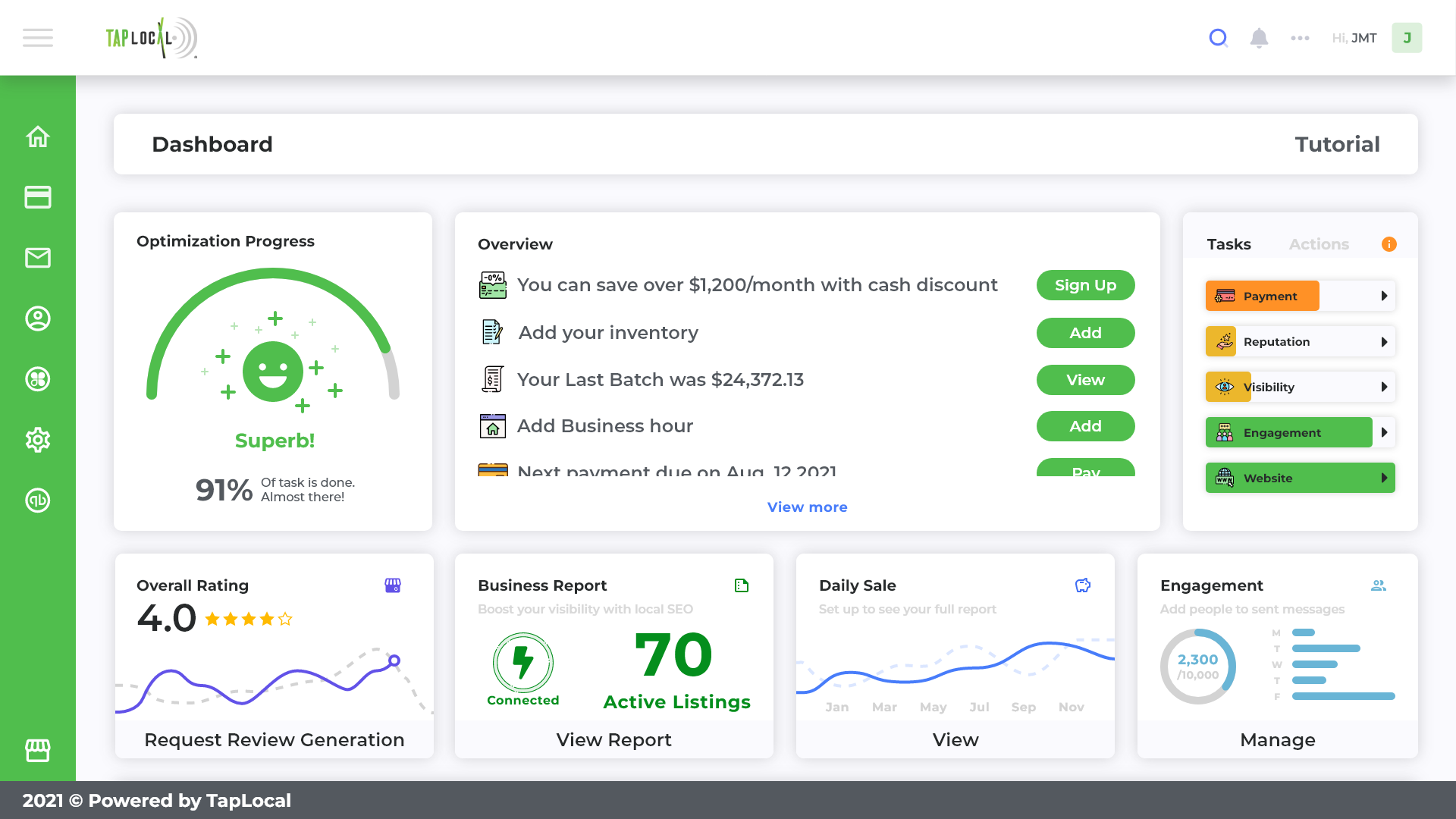
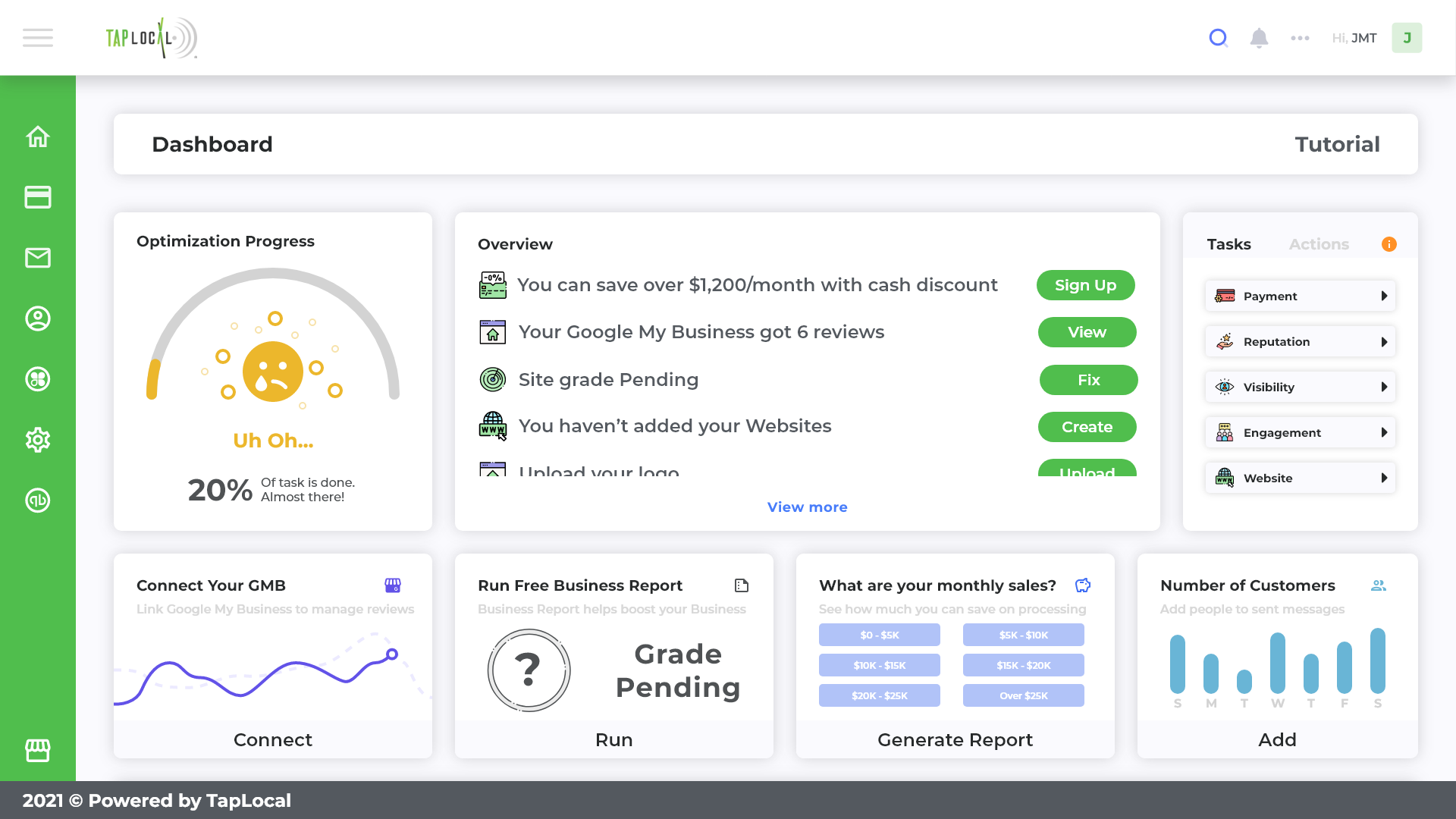
The platform's signature element, the Optimization Progress gauge, was also its hardest. The development team struggled to build the custom animation it originally called for. Rather than hold the feature hostage to a perfect animation, I simplified it: a cleaner gauge the team could actually ship, that still communicated an owner's progress at a glance. Designing to what the team could build was part of the job, not a compromise of it.
Solution
I designed the full platform as a connected flow: a guided setup, a business scan that shows owners where they stand, a dashboard that pulls it all together, and clear tiers and checkout so owners can pick and pay for what they need.
Guided onboarding
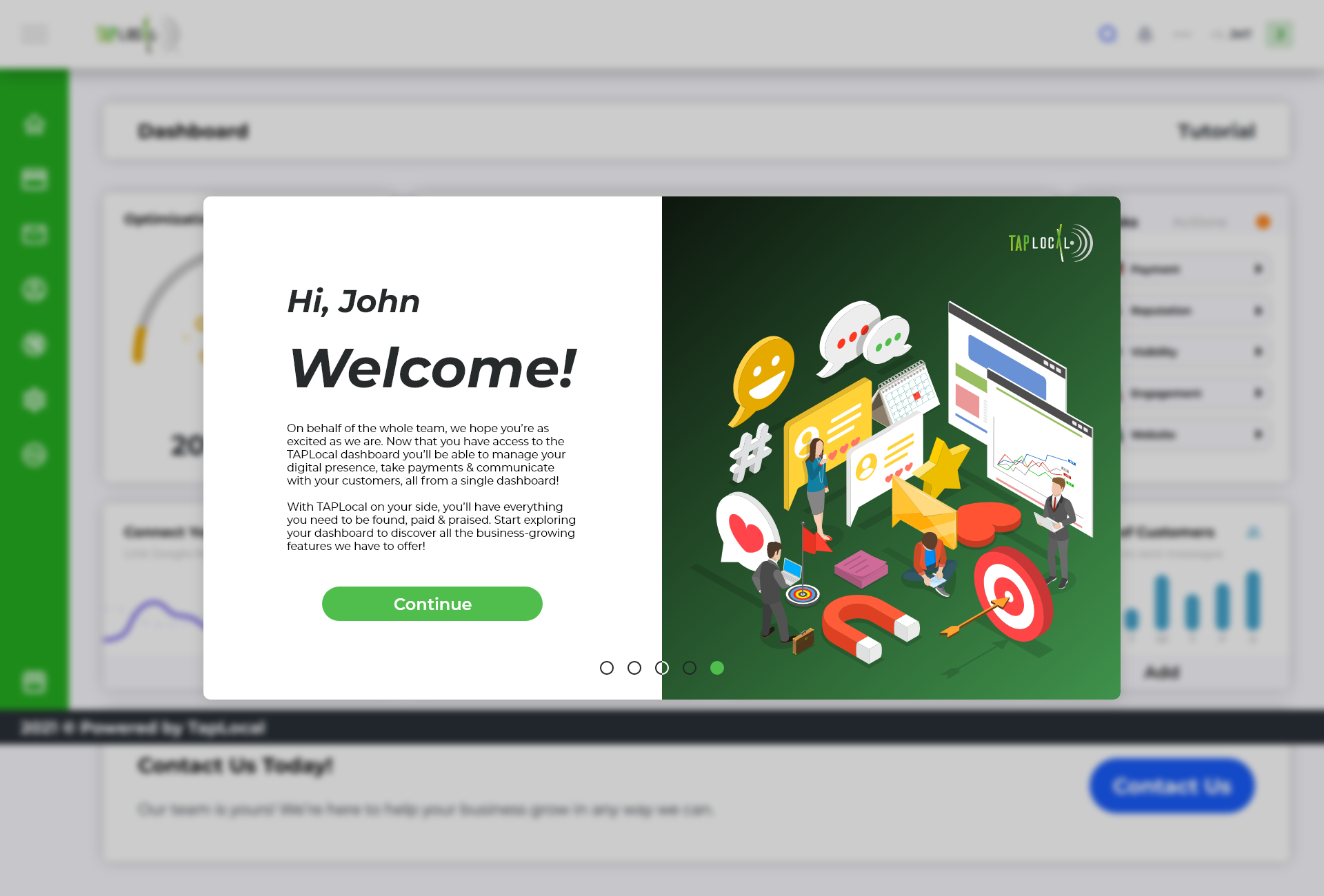
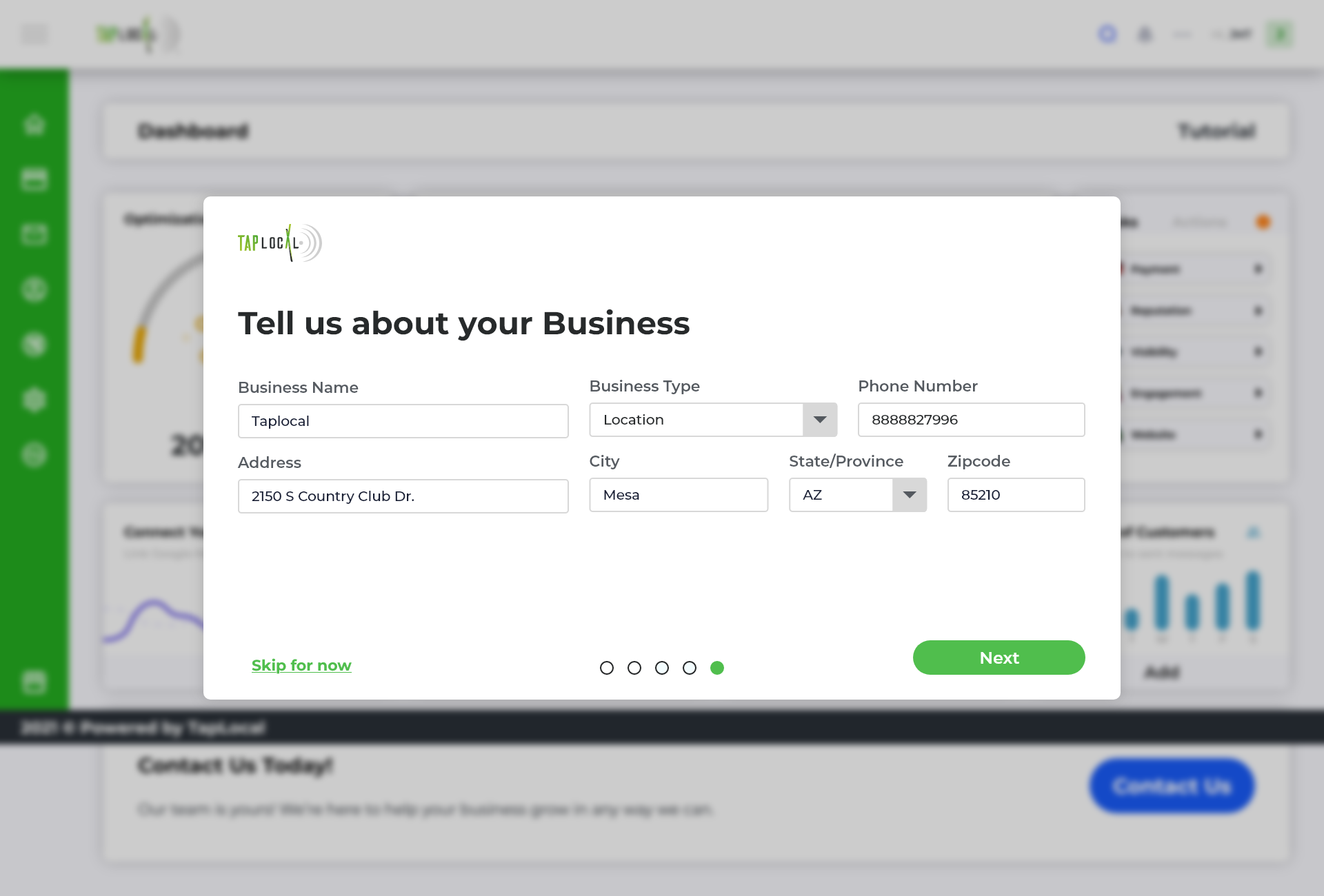
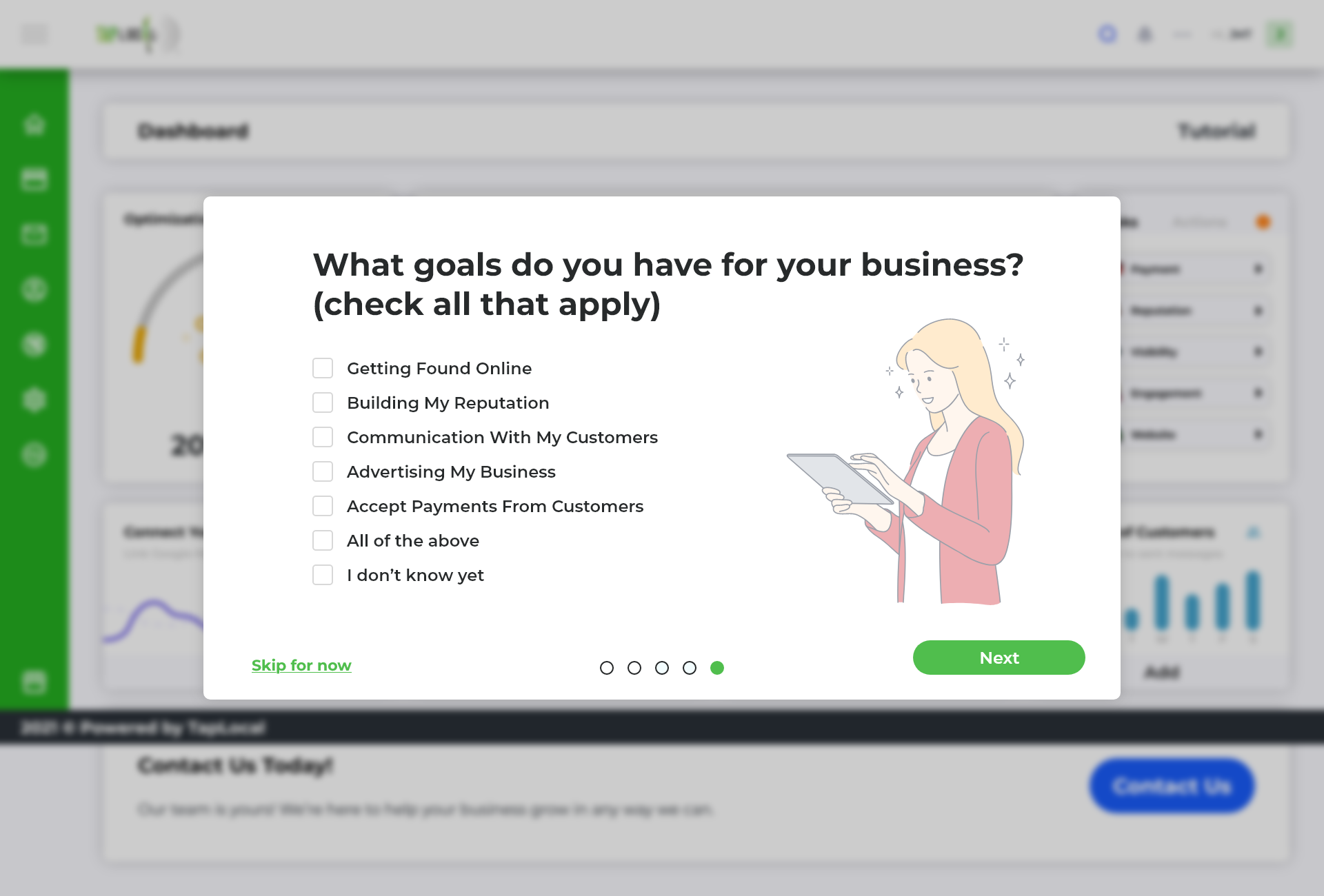
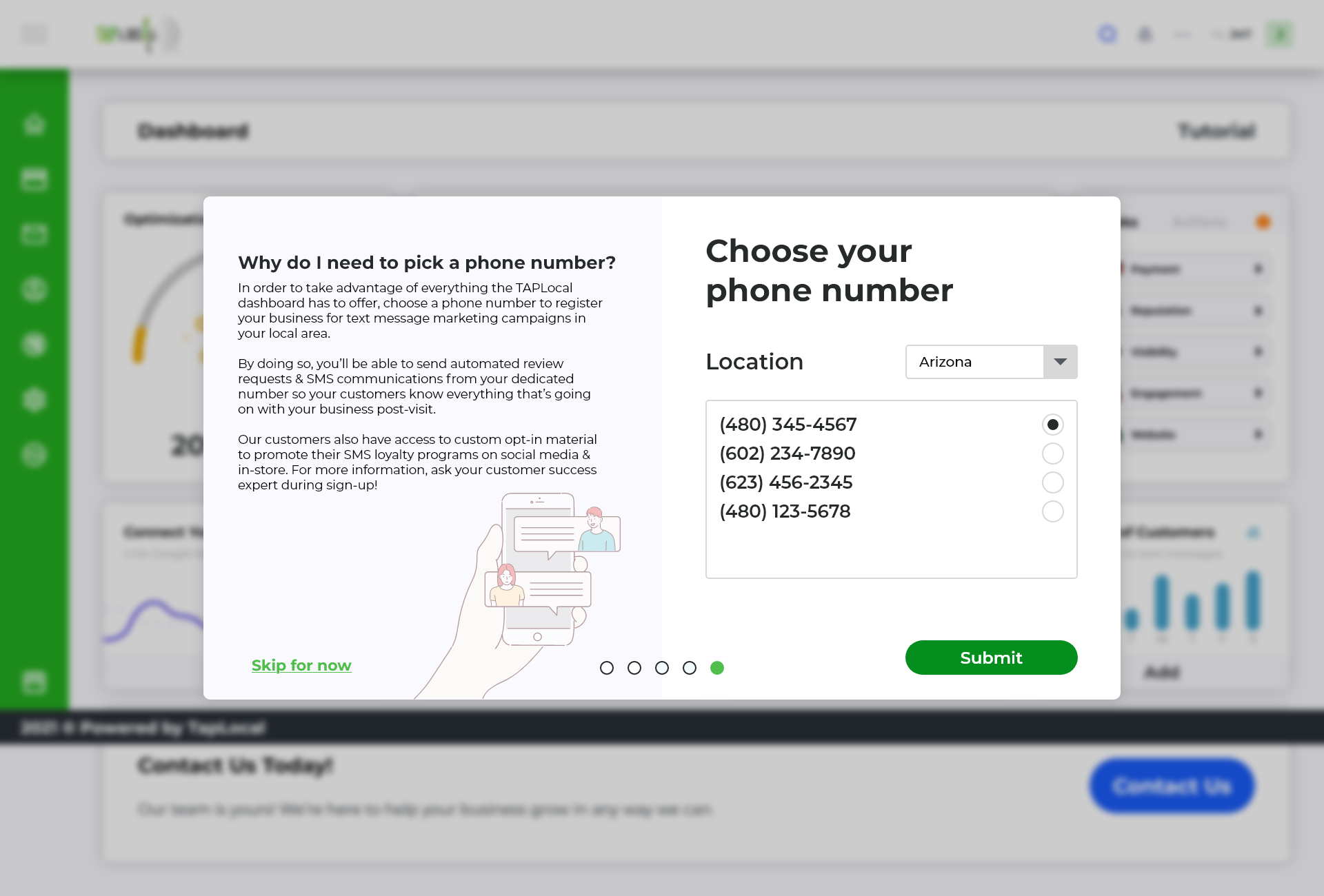
Setup is where non-technical users drop off, so the first run is broken into small, friendly steps: a welcome, the basics of the business, the owner's goals, and a dedicated local number for text-message marketing. Each step asks for one thing at a time, with a clear way to skip and come back.
Confirm the business, then scan it
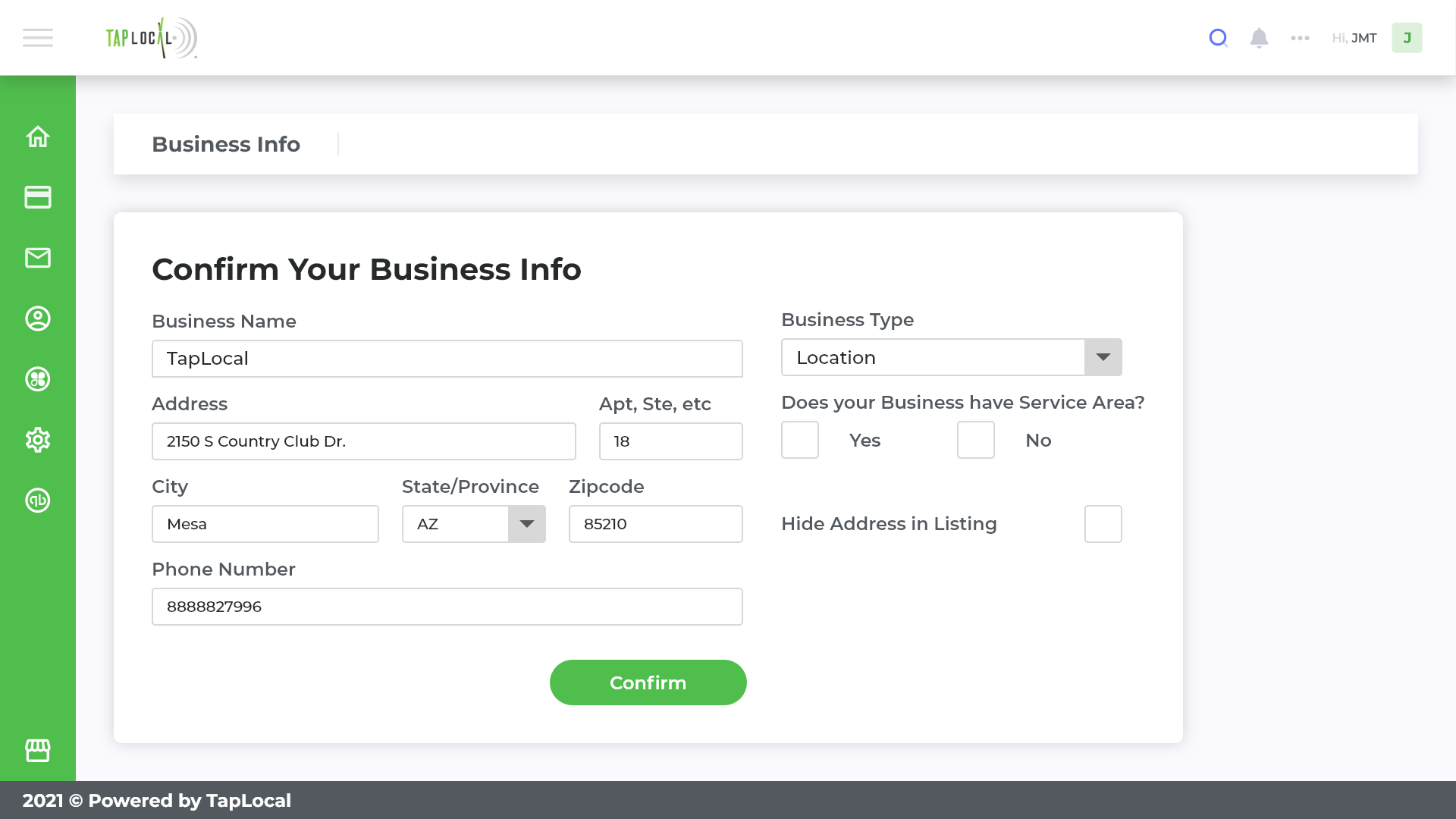
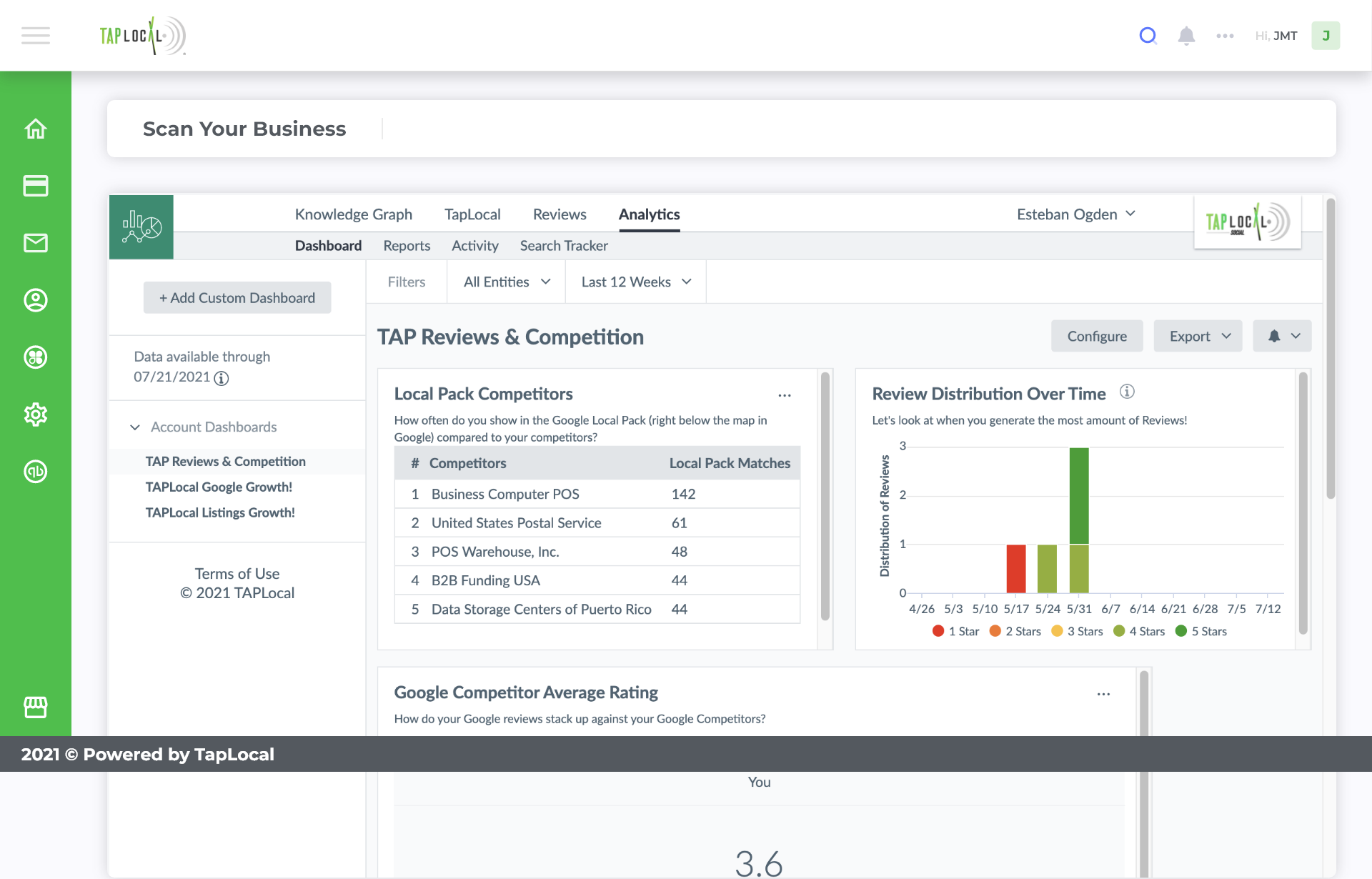
Owners confirm their business details once (name, type, address, service area), and the platform uses that to work for them. The "Scan Your Business" view then shows how the business is actually performing online: where it ranks against local competitors, how reviews are trending, and what's holding it back. It turns a vague worry ("am I visible?") into something concrete an owner can act on.
The dashboard: the main screen
The dashboard is where an owner lives. It had to carry a lot (optimization progress, a prioritized to-do overview, rating, active listings, daily sales, engagement) without feeling heavy. Keeping it condensed above the fold meant an owner could open the app, see exactly what needed attention, and act, all from one screen. The Optimization Progress gauge anchors it: a single, friendly read on how far along they are, from an early "Uh Oh" to a fully optimized "Superb."
Tiers for what each business needs
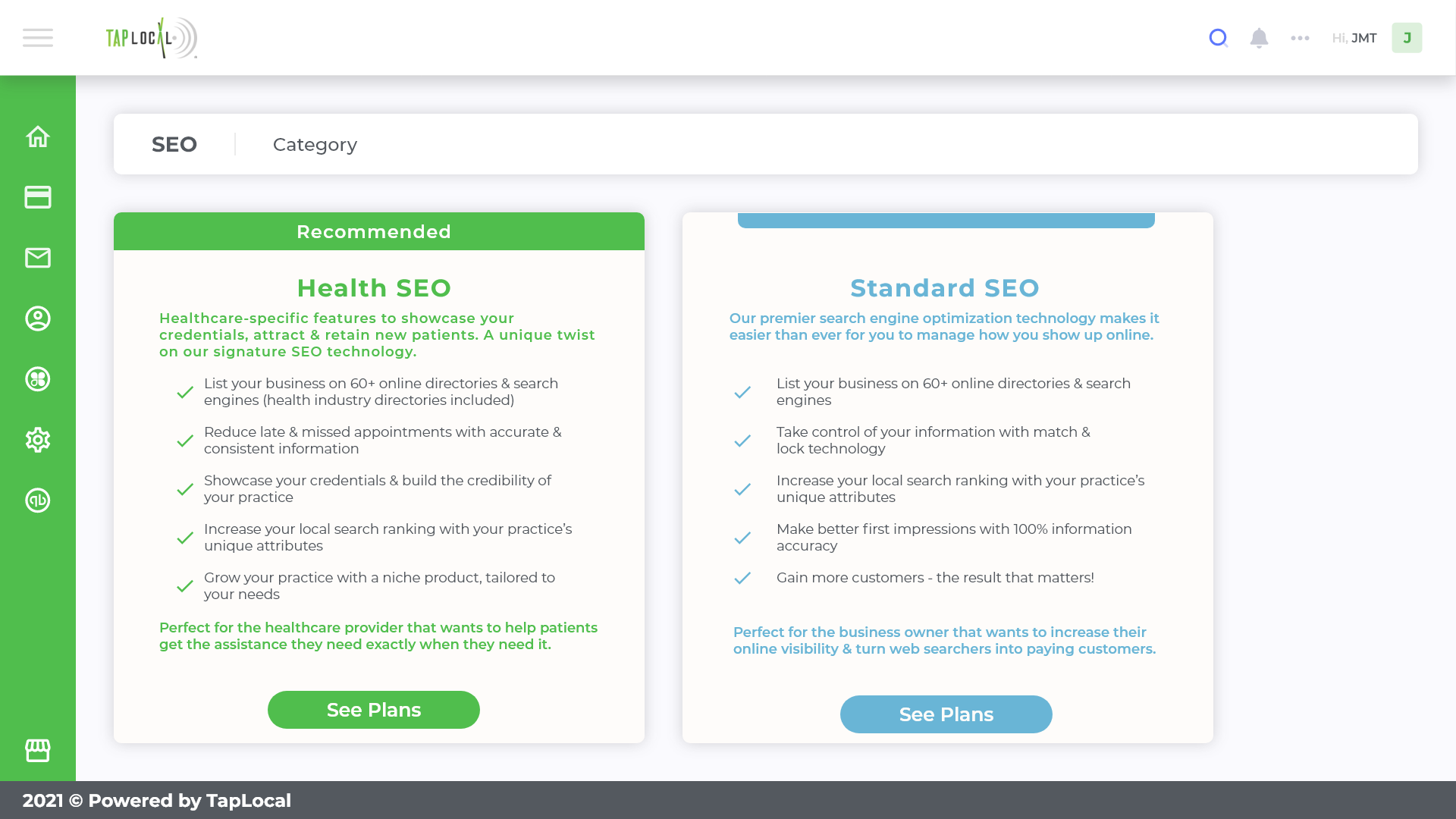
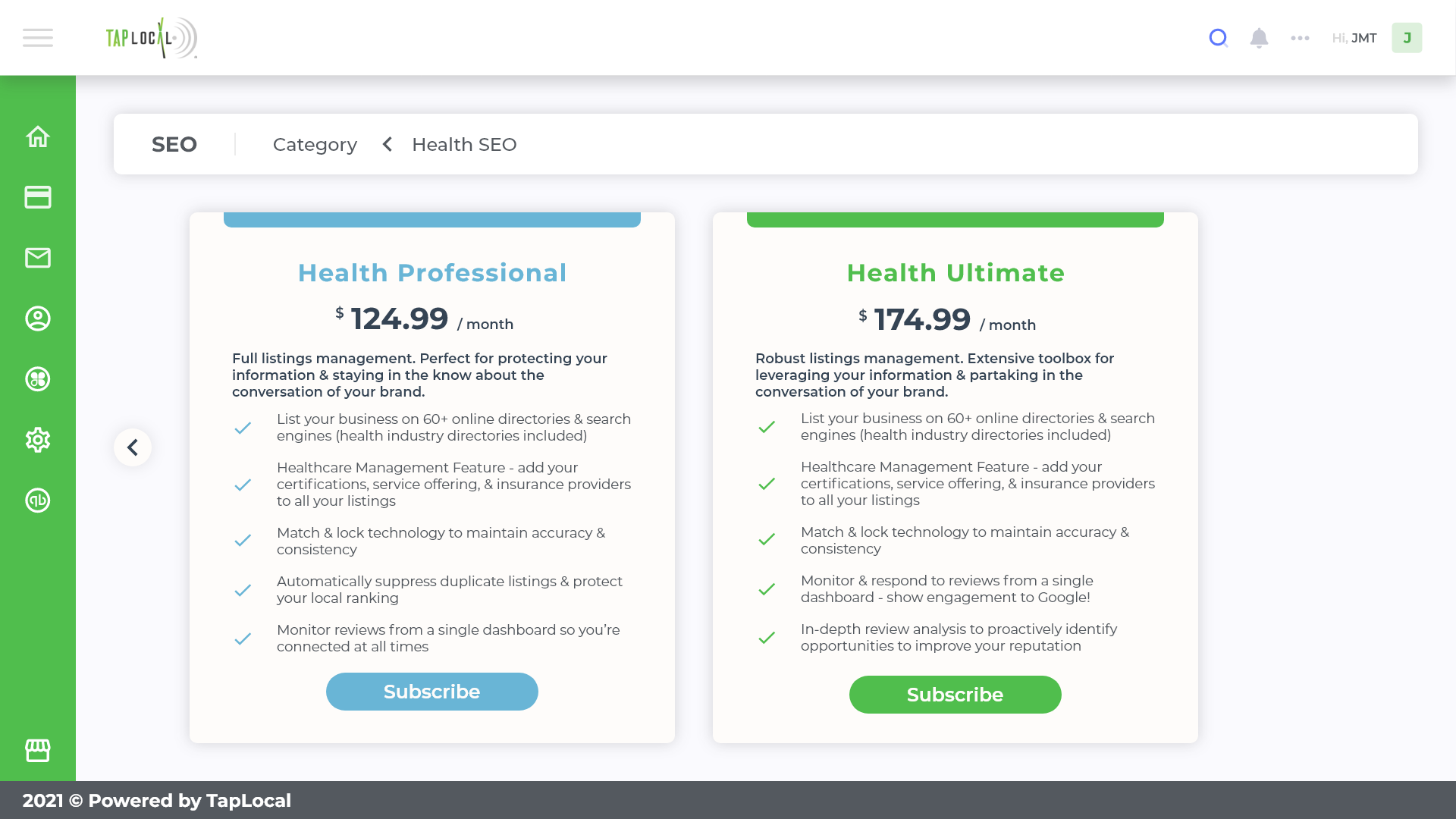
Different businesses need different tools, so services are organized into clear tiers. An owner picks the category that fits, health-focused or standard SEO, then compares plans side by side, with each plan's capabilities spelled out in plain language rather than jargon.
Payments owners actually understand
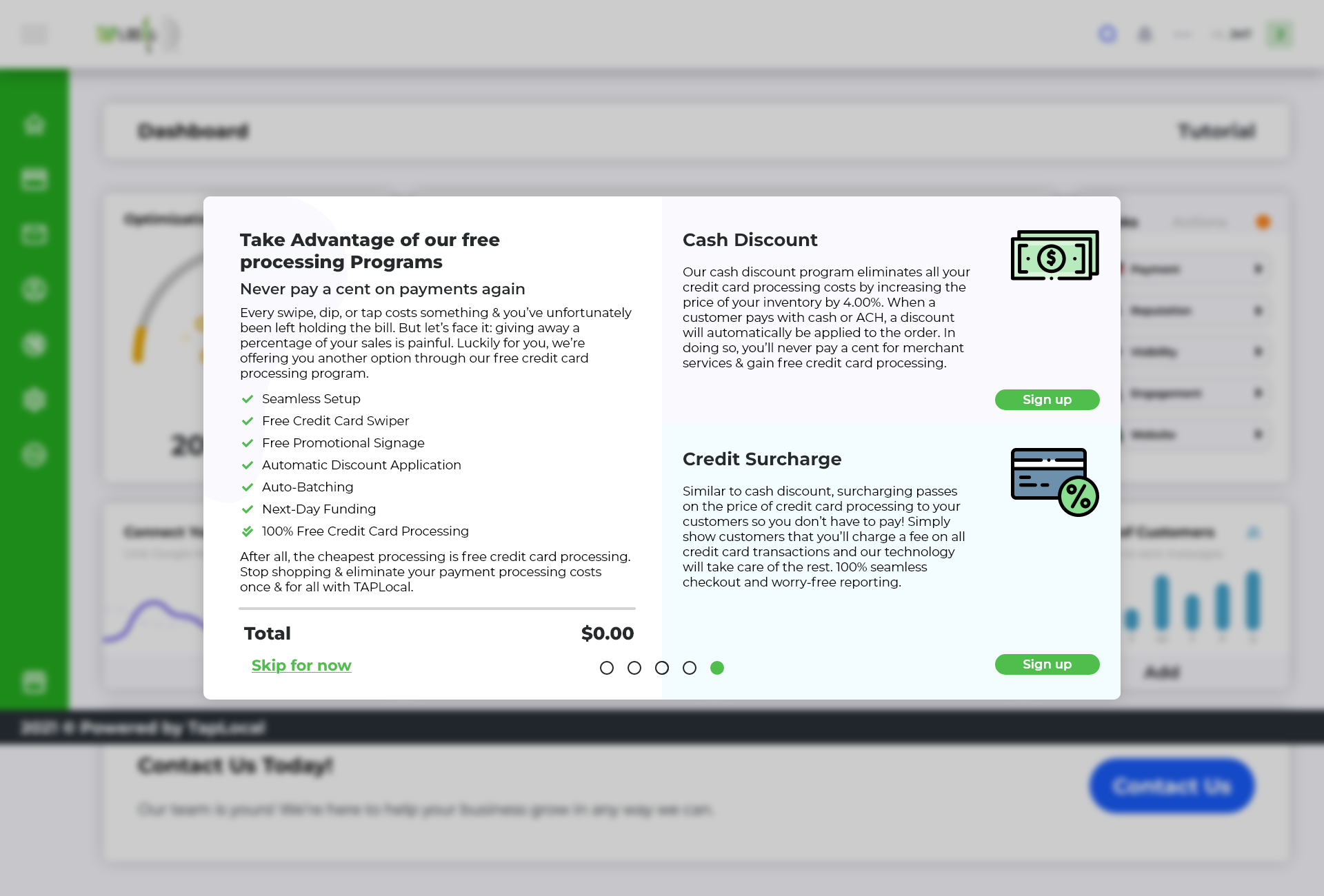
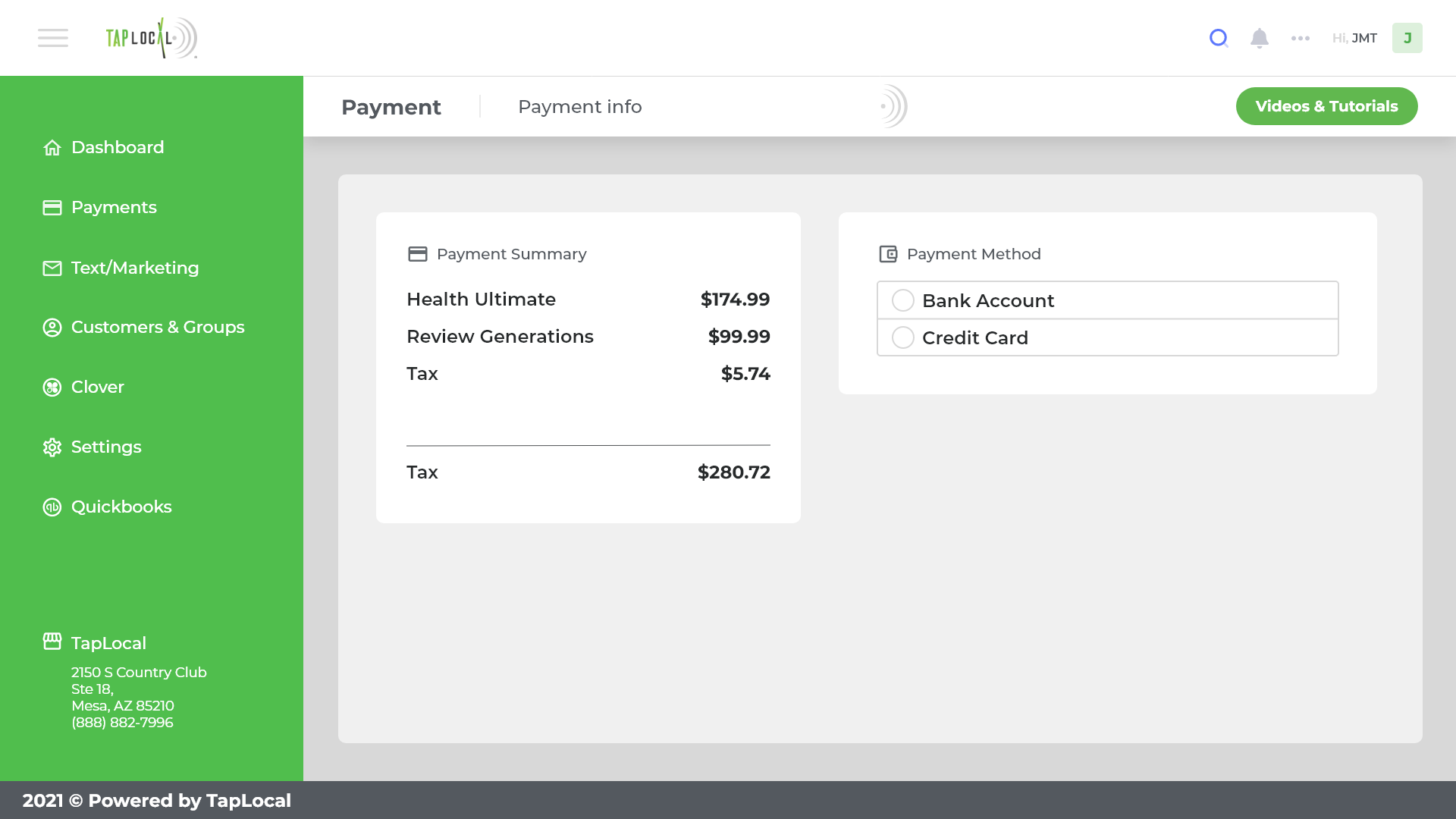
Owners choose their business type, select the services they want, and check out, with free processing programs surfaced along the way so cost-conscious owners can save. The payment summary keeps the math transparent: what they're buying, what it costs, and how they're paying, with no surprises before they commit.
Outcome
The design took TAP Local from nothing to a working, owned platform: a full 0→1 product spanning onboarding, business scanning, a condensed dashboard, tiered services, and checkout. For TAP Local, that meant running their own software instead of paying every year for third-party tools, and a foundation they could take into new markets. For the business owner, it meant one practical screen that shows where they stand and what to do next, built for someone who wants to run their business, not learn an app.
TAP Local was a small company with limited resources, so I don't have formal adoption or performance metrics to point to. What I can speak to is the design intent that shaped every screen: condense over scroll, clarity over completeness, and ship something real within the team's technical reality.
Learnings
Designing a 0→1 product as the only designer taught me how much of the work is restraint. It's easy to add one more card, one more section, one more scroll; it's much harder, and far more valuable to a busy owner, to decide what earns a place above the fold. Working shoulder to shoulder with developers on the Optimization gauge also reframed constraints for me: the best design isn't the most ambitious one, it's the one that ships and still does its job. And designing for non-technical SMB owners kept me honest: if a local business owner couldn't glance at a screen and know what to do, the design wasn't done.